
Turn Your Artwork into a V-Fold Pop-Up: Alignment and Mounting
Use a house image and 3D comparison to align artwork with a V-fold's centre crease, mounting lines and tabs. Learn how outlines differ from real cutout holes.
How to mount your own artwork on a V-fold
Prepare a continuous subject and mounting area before adjusting image placement and contour. The diagrams below explain each relationship.
Prepare the subject and support
Separate the subject from the background and preserve continuous paper where connections are needed. Choose a V-fold support; transparent pixels do not form a paper connection.
Separate artwork, contour and creases
Check image placement, size and cut contour in the artwork settings. Identify the centre crease, mounting creases and glue areas, and preserve them when trimming the silhouette.
Align the actual mounting face
Place the subject on the chosen paper face, align its mounting area and check front, back and bonding regions. Visual overlap does not establish a connection.
Check motion before a test build
Inspect closed, intermediate and open poses from the side and back, checking for strain and page-edge protrusion. Check export access before printing and make a plain-paper sample first.
To turn artwork into a pop-up, give it working creases and mounting relationships. Start with a simple house: keep the centre crease, two mounting segments and tabs, change the outline, then check the full motion.
Download a transparent practice image, compare rectangular and house-shaped wings in 3D, and follow the current workbench's import and placement workflow.
1. Start with one simple image
Make one simple house: place the centre crease through the roof peak and keep continuous paper and glue tabs below both walls. Learn to give artwork an existing V-fold structure before trying a complex character or cutout. First identify paper angle A, mounting angle C and page opening θ in the right-angle lesson.
Download the transparent house artwork (PNG) · Right-angle lesson and A4 base pattern · Go to the 3D comparison ↓
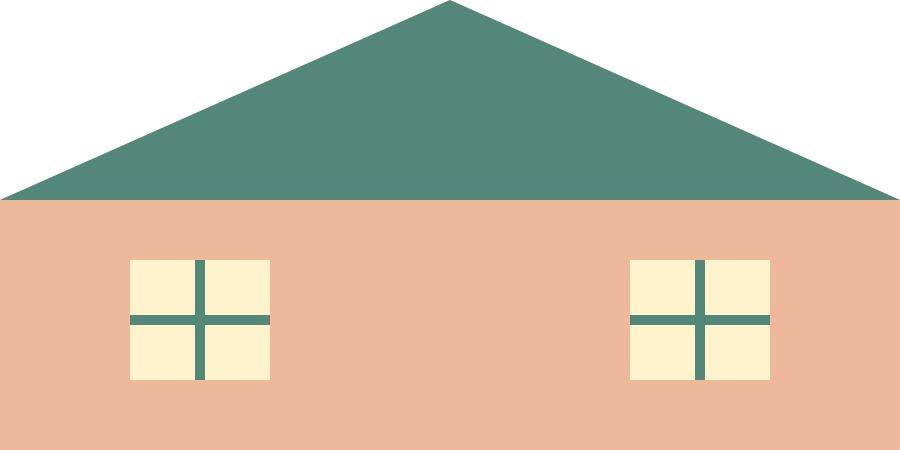
This original lesson artwork is free to download without an account and may be used for this exercise and personal projects. It is an image, not a dimensioned cutting pattern with tabs. The pale windows are printed decoration, not transparent holes. The artwork has a 2:1 aspect ratio; the demo uses a 90 × 45 mm outline. Reading and previews require no sign-in; check the workbench and pricing page for personalized project saving and export terms.
2. Which structural relationships must stay?
The key to replacing artwork is preserving the creases and mounting that drive it. The two lower lines here are the mounting creases between wings and glue tabs, not any two edges of the picture. In the symmetric configurations used in this series, the lines containing both mounting creases pass through the same point O on the centre crease.
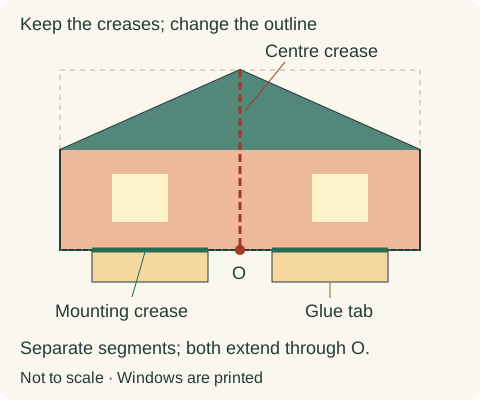
In the right-angle example, both mounting lines lie on the same straight line in the unfolded sheet. They are not two sloping lines with a unique intersection. O is where that shared line crosses the centre crease. In the acute and obtuse examples, the mounting lines are not collinear and meet when extended. The actual tabs may be set back from O; neither segment needs to start there.
The mechanism's centre crease and the base-page spine are different creases. On the base pages, the extended placement lines should meet on the spine, and the paper and mounting angles must be compatible. Aligning the intersection alone does not guarantee that arbitrary artwork can close and open fully.
3. From rectangular wings to a house silhouette
Start with the rectangular wings from the right-angle lesson and remove only the two upper outer corners to form a roof. The 45 mm centre crease, mounting segments, 8 mm tabs, placement and angles A=B=90°, C=D=130° remain unchanged. The panel colours distinguish the wings; they do not reproduce the downloaded artwork's printing.
The annotated pattern remains available while the 3D view loads.
- Switch between rectangle and house at the same page opening: the outline changes while the creases and tabs stay in place.
- Orbit to the back and find both tabs. The tabs attach to the base; the wings rotate about the mounting creases. Do not glue the whole back of the subject to the pages.
- Close to 0°, pass through 90°, open to 180° and close again. The static conclusion is that these two presets share the same motion; changing the outline adds no new driver.
This example only removes paper from the original rectangle. Hair, branches or decorations extending beyond it need new packing and interference checks. Make a plain-paper sample and check that the paper bridges hold and the glue areas align before making the colour version.
4. Import, align and mount in the workbench
Use the workbench's V-fold sheet import workflow, rather than only printing a texture on existing triangular wings. The basic V-fold starts with triangular wings. Open the template, use Add component in the component library to enter the material importer, and select the V-fold sheet mode. For an imported component, its sheet thumbnail in the right panel reopens the editor.
Open the symmetric V-fold template →
The workbench currently uses Chinese labels in this import dialog. The English names below describe their functions; they do not imply a fully translated editor.
- Select the right-angle preset and keep symmetric editing enabled. Leave the left and right mounting angles alone initially, then import the downloaded PNG.
- Switch to Move artwork. Align the roof peak with the centre line, then scale and move the whole image so both wall bases meet the mounting lines and the roof stays on the wing side. The importer estimates an initial image size; it is not automatically the demo's 90 mm width.
- Switch back to Edit sheet. Check that each pink tab joins continuous paper, rather than floating in transparent space or connecting through a hairline. Keep the whole wall base for the first exercise. If a connection needs more paper, add a polygon paper patch and inspect the resulting outline.
- Save to the component library, select the component and place it on the base pages. Editing an existing imported component uses Save component changes instead. Recheck C, position and size after saving: saving the sheet updates some parameters, so do not assume the old mounting angle is retained.
- Check 0°, 90°, 180° and closing again before making further changes. A texture is enough to change the print on an existing paper face; use sheet import when the cutting outline should follow the artwork.
5. Separate transparency, outlines and holes
Painting a pale window, erasing image pixels to transparency and cutting a physical hole are three different operations. This house has printed windows only. The current V-fold sheet importer primarily generates the left and right outer contours; it does not convert every transparent image region into an internal cutting hole. Its status message also notes that transparent areas are white paper.
Complete the outer contour and mounting first. A hollow-looking image is not an automatically generated cutting instruction. If you later try an internal hole by hand, treat it as an additional pattern edit: mark its boundary, keep clear of the centre crease, mounting creases and glue areas that must remain, and preserve continuous paper bridges. Do not cut the wings or tabs into disconnected pieces.
Bridge width depends on scale, paper and fabrication method; this lesson does not give a universal safe number. After adding an internal hole, fold the sample again and check for bent bridges or tearing near the creases.
6. Troubleshoot the result
The subject disappears or becomes a tiny fragment
Check whether the subject lies on the glue side of a mounting line: the importer removes artwork on that side. Move it back onto the wing side and inspect both outlines. Do not chase the image by pulling the mounting lines into arbitrary angles.
The picture is aligned, but the connection is narrow or broken
Inspect the paper, not just the coloured pixels. Move or enlarge the image so continuous paper connects the subject to both mounting segments; add a paper patch if needed. Decorative blank areas can remain white paper rather than all being cut away.
It looks good open but will not close or sticks out
First check compatible A and C and whether glue locks a moving crease. Then check the outline size and whole assembly position. Diagnose motion and packing separately using the comparison guide.
Return to the V-fold comparison guide →
Uploading did not produce the expected holes
Distinguish texture transparency, outer contour and actual holes as described above. A white paper area is not a successful cutout, and repeatedly uploading a more transparent image does not define a cutting hole.
7. Make a plain-paper sample, then your own design
At the end of the exercise, identify the artwork, centre crease, two mounting creases, both tabs and their corresponding positions on the base. The crease relationships still exist without the coloured picture. New artwork still needs continuous paper and mounting areas.
Once you have a fabrication pattern, print at its specified paper size and actual scale. Check dimensions, score, cut, pre-fold, dry-fit and glue; follow the adhesive's drying instructions. The PNG has no tabs and is not a complete mechanism to print directly. Verify the motion in plain paper before decorating.
Next, apply the same relationship between artwork and structure to the layered Halloween project. Before adding layers, finish checking this single house through opening, closing and packing. Continue to the Halloween project →
Questions you may have
Does a transparent image automatically become a V-fold structure?
No. The image supplies printed artwork; continuous paper, cut contours, creases and glue connections define the structure. Preserve a mounting area on the subject, attach it to an actual support face and inspect the motion.
Why do the subject or glue areas become misaligned after replacing artwork?
Image scale, placement and cut contour are separate settings. Check image-to-contour alignment, then glue areas and creases. Inspect more than the front view at full opening, and repeat the closing check after resizing.